
Introduction :
Most beginners use Git every day to track their code changes, but rarely understand what actually happens behind the scenes. Commands like add and commit work fine—until something breaks and Git starts feeling confusing. Trust me, I’ve been there!
One major reason for this confusion is the hidden .git folder, which silently stores everything Git needs to manage versions. Since it stays out of sight, many developers never think about what it does.
In this blog, we’ll break down how Git works internally and explain the role of the .git folder in a simple, beginner-friendly way—without diving into unnecessary complexity, and help you visualize what happens behind the scene.
1. How Git works internally?
The commonly used phrase is that, Git tracks the changes made in the source code. While this sounds correct, that’s not the entire picture. To be precise, Git actually tracks the content of the file, not the file itself. This is how Git is able to tell exactly what was changed.
Every commit represents the current state of the project at a particular point in time. However, this does not mean it copies every unchanged lines for every commit.
If a file was not modified, it simply reuses the previously stored content instead of creating a new file while still treating each version as a new snapshot.
It’s like adding a new book to your bookshelf, you don’t rearrange the whole shelf, you just add the new one and take the picture of your collection to update. Git works in a similar fashion, it takes snapshot only where the modification is done.
2. Understanding the .git Folder :
If Git tracks the content of the files, the natural question is: where does Git store all these information.
The answer is.gitfolder created inside the project directory. This is the actual Git Repository (folder).
All the Project files are separate from Git data. The source code stays inside the project folder while the.gitfolder stores the version-related data such as - metadata, commits, pointers, stored snapshots of the contents that Git used to track the changes over time. Because of this separation, deleting.gitdoes not affect the project file but it means losing all the commit history.
.gitfolder is hidden by default to prevent any accidental damage to the commit history and Git data.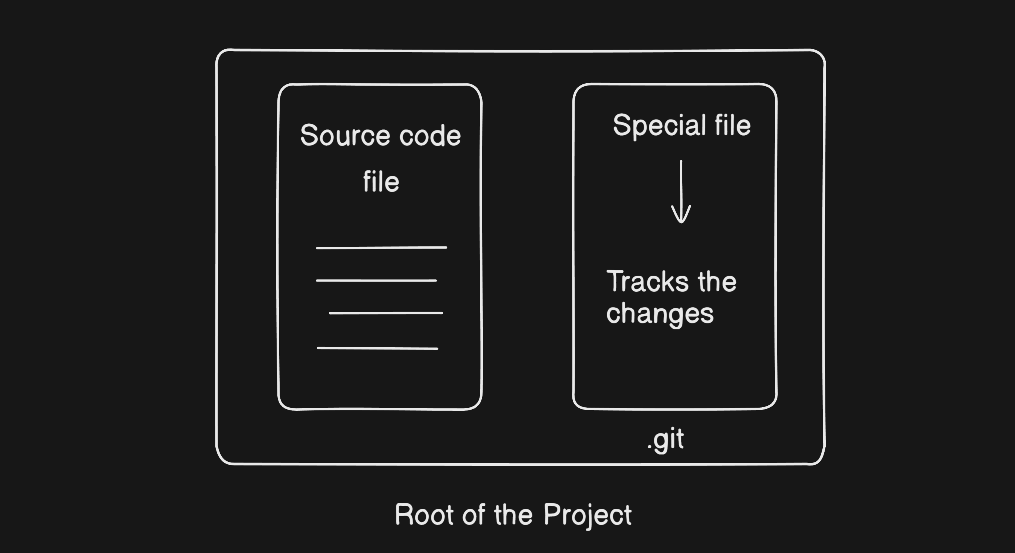
3. Git Objects: Blob, Tree, Commit :
Git objects are the unit of data , generally called the Building Blocks of the Git Repository. Git stores objects internally to track the projects.
Everything Git knows about a project— its content, structure, and history— is represented using these objects.
It’s like having different drawer in the cupboard to store different things.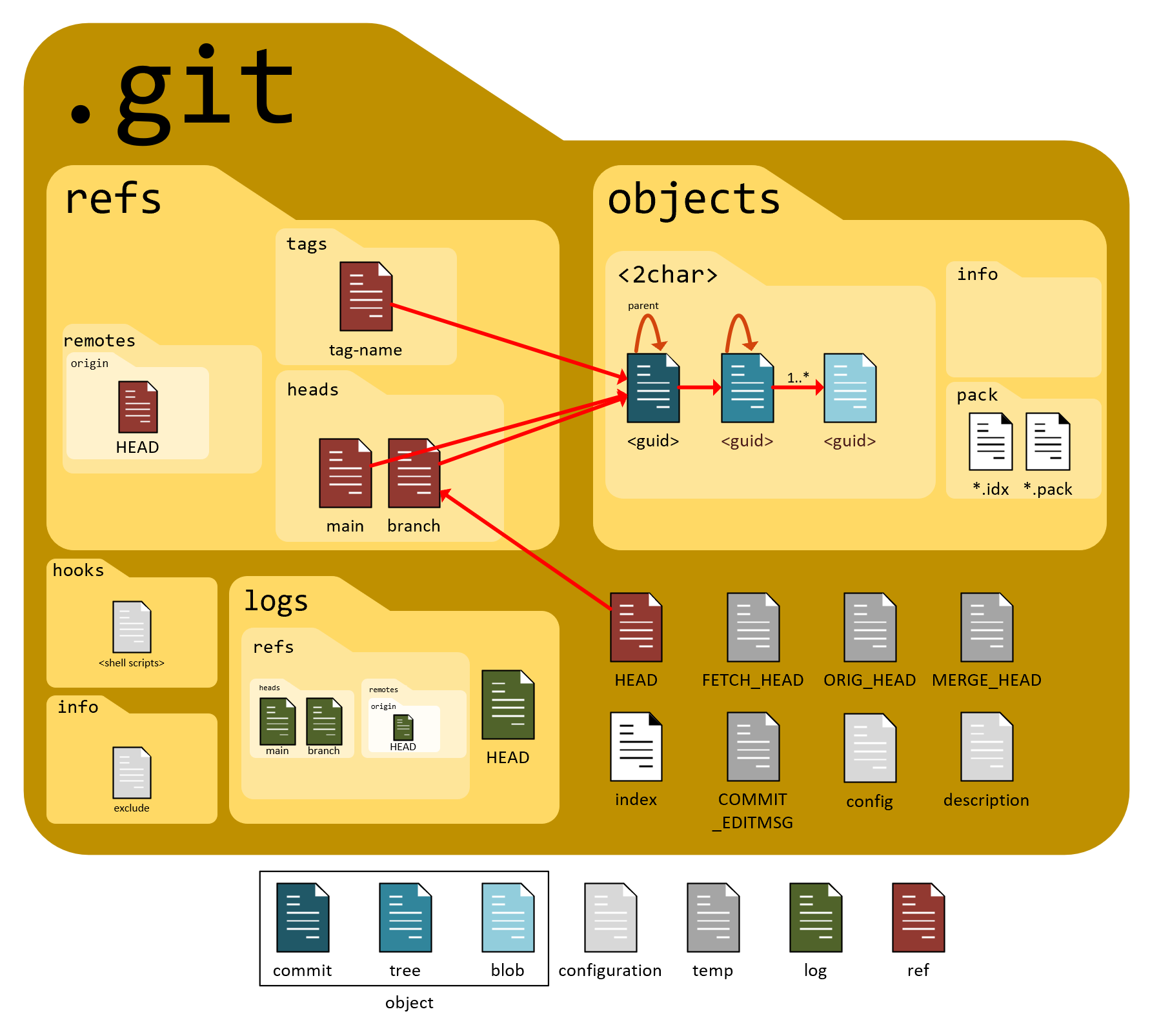
Let’s look at the three core Git objects :
Blob : It stores the raw content of the files.
If there’s a file called “hello.txt” with the content “Hello!”
Blob stores : “Hello!”
It does not care about the file name or its location, only the content matters. it stores the content as is.
If you happen to rename the file without any changes in the content. Blob remains the same, because the content was same. However, if you change your content from “Hello!” → “Hello, there!”, Git will create a new Blob because the content changed.Tree :
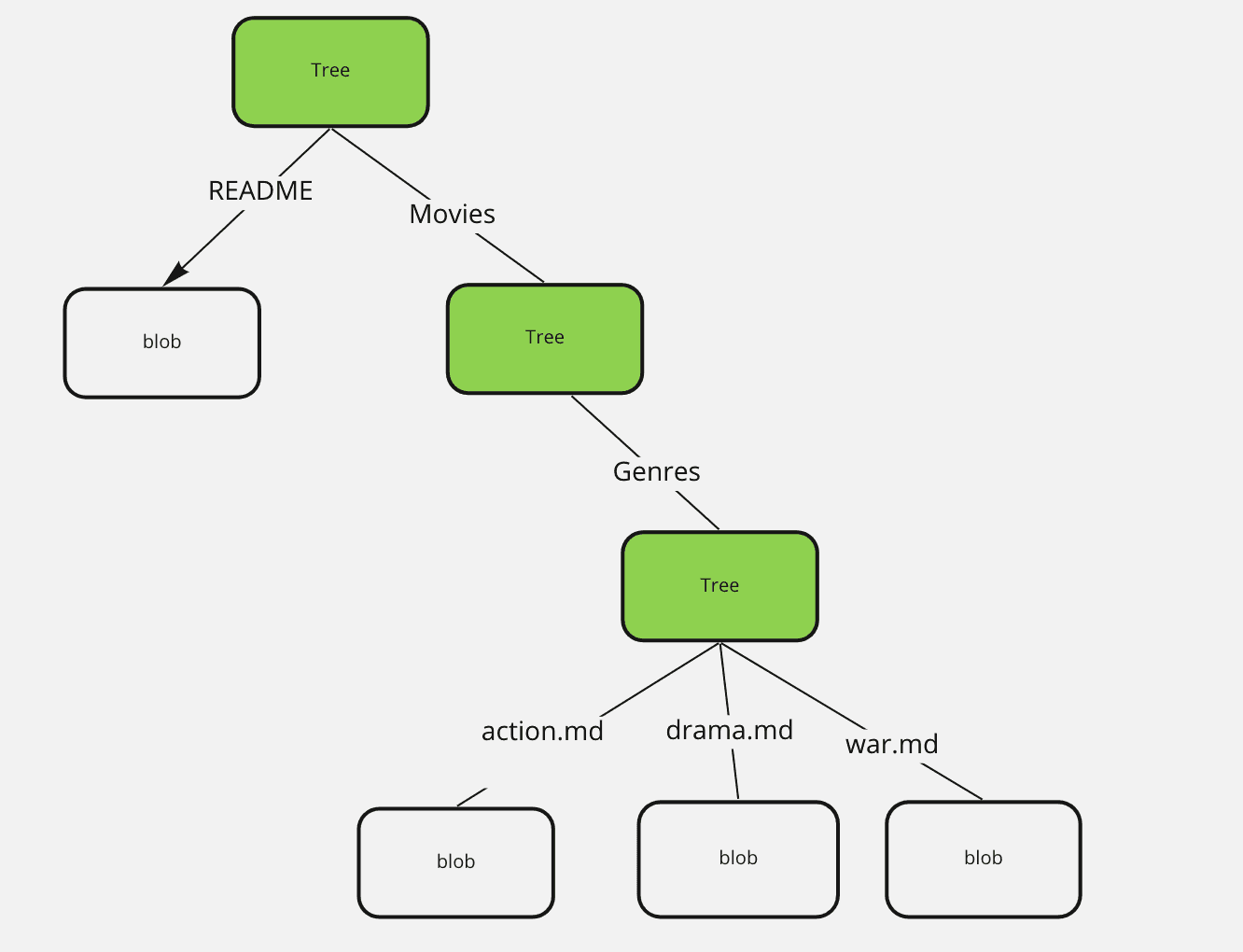
Since, blob does not store the file names or location of the file, Git uses a Tree object to represent the directory structure.
It stores the structure, and represents the directory at a specific point in time.
It represents the directories, file names and links them to the blob or other trees.
Git can reconstruct the whole folder structure of the project at a specific point in time. It does not store the content, it just links the directory to those contents.Commit :
This a Git object that represents the Snapshot of the Project at a specific point in time.
This is how the Git represent the version of a project at a time. This object ties everything together.
Technically, a commit
→ points to one tree- the current structure of the project
→ stores the metadata
→ and links to the previous commit to form history
Here, the metadata contains the author name, the time at which the commit was made, and the commit message.

Representation of all the objects in one sentence:
Blob → Content of the Files.
Tree → Arrangements of the Files.
Commit → A saved version pointing to that arrangement.
4. How Git Tracks Changes :
Git tracks content of the file and not the file itself. Git does not track changes line by line or remember individual edits made to a file. instead, Git tracks content of the file and compares them over time.
Whenever there is some modification in a project, Git does not think,
→ “Line 7 was changes”
Git thinks,
→ Content of this file is different than before.
To track the project file through Git, we ought to tell Git that it needs to track which particular file. To actually have a conversation with Git, we use commands.
When you are sure of the change that you have made, you use the “git add” command to stage those changes. After this step, you use “git commit” command to take the snapshot of the current version of the the project.
Git tracks the changes by storing snapshot of the project’s content at different point in time. All the commits i.e snapshots get unique identity called hash value. The difference between 2 snapshots is what we perceive as change.

